T3 Code's desktop app can run its agents on another machine over SSH.
Point it at the cosyra host and it runs them in your Cosyra
cloud workspace. T3 Code installs its own server in the workspace, so Claude Code, Codex, terminals
and Git all run on a cloud Ubuntu machine instead of your laptop. No plugin is
needed.
tl;dr
Install the Cosyra CLI and choose SSH setup in the menu it
opens. Run ssh cosyra 'echo connected' to wake the workspace. In
T3 Code open Settings > Environments > Add environment > SSH, type cosyra
and pick it from the suggestions. The first add takes about 3 minutes.
How it works
| Where | What runs there |
|---|---|
| Your computer | The T3 Code desktop app, and the Cosyra CLI, which opens the SSH connection |
| Your Cosyra workspace | T3 Code's server, your repos, the agents and the terminals T3 Code opens |
Connect T3 Code to Cosyra
Step 1
Install the Cosyra CLI
Run this in a terminal on the Mac or Linux computer where you use T3 Code. When the install finishes, it opens the Cosyra menu.
curl -fsSL https://cosyra.com/install.sh | bashStep 2
Sign in and set up SSH
In the Cosyra menu, choose SSH setup. It signs you in to
your Cosyra account if needed, then adds a cosyra host to your
SSH config. No SSH keys are created or uploaded.
Without the menu, open a new terminal and run:
cosyra auth login
cosyra ssh-config
Step 3
Wake the workspace
Run this and wait for it to print connected. It wakes your
workspace, or creates it the first time. T3 Code waits only 10 seconds for
SSH, and a workspace that is starting can take longer.
ssh cosyra 'echo connected'Step 4
Add the SSH environment in T3 Code
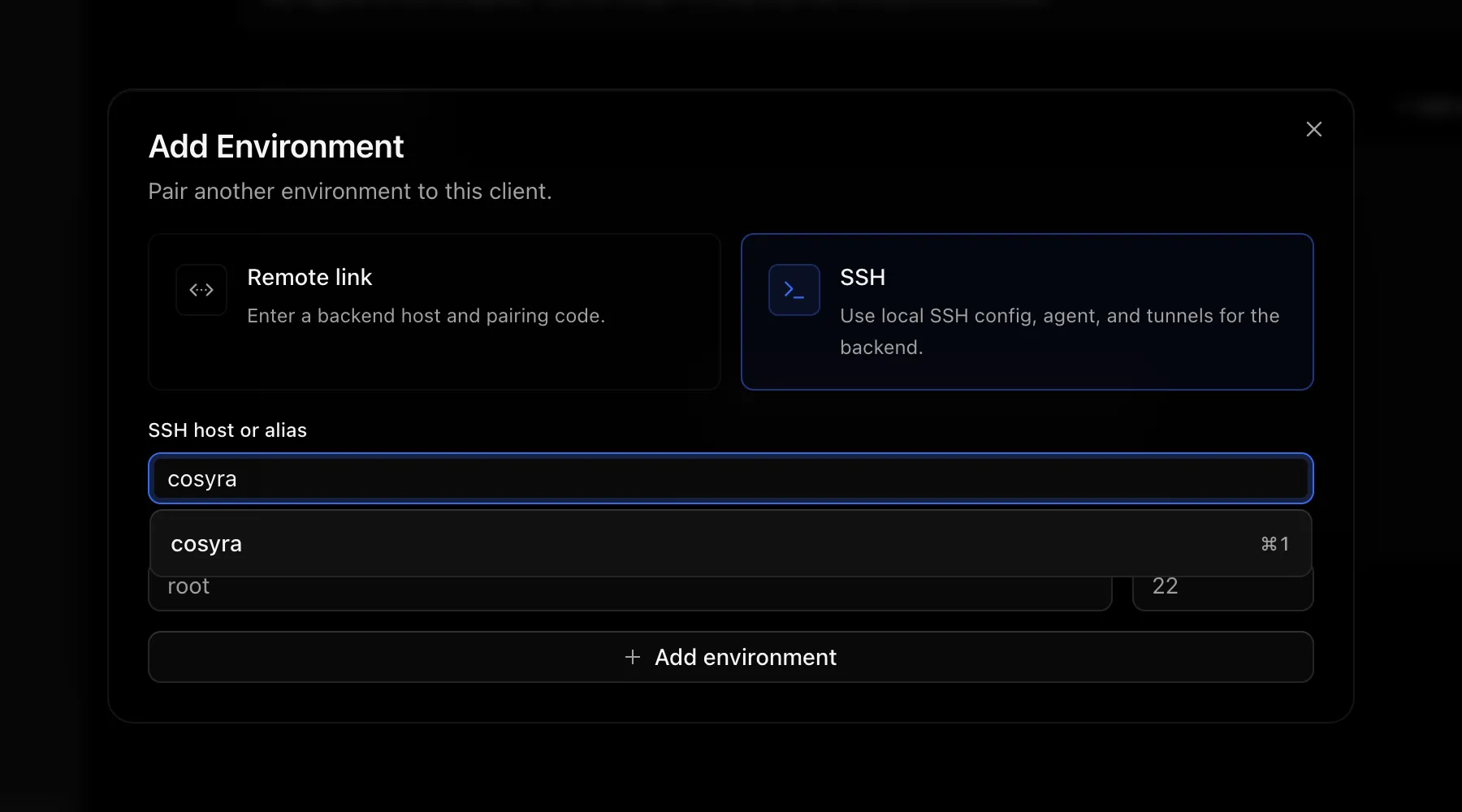
In T3 Code open Settings, then
Environments, and click Add environment.
Choose SSH, type cosyra in
SSH host or alias and pick cosyra from the
suggestions. T3 Code reads the host from your SSH config, fills in the username
azureuser and starts adding the environment. Pick it from the list
rather than typing it out: a typed host leaves the username empty.
T3 Code's first-run screen only offers pairing links. SSH is only in Settings.
Step 5
Wait for the first install
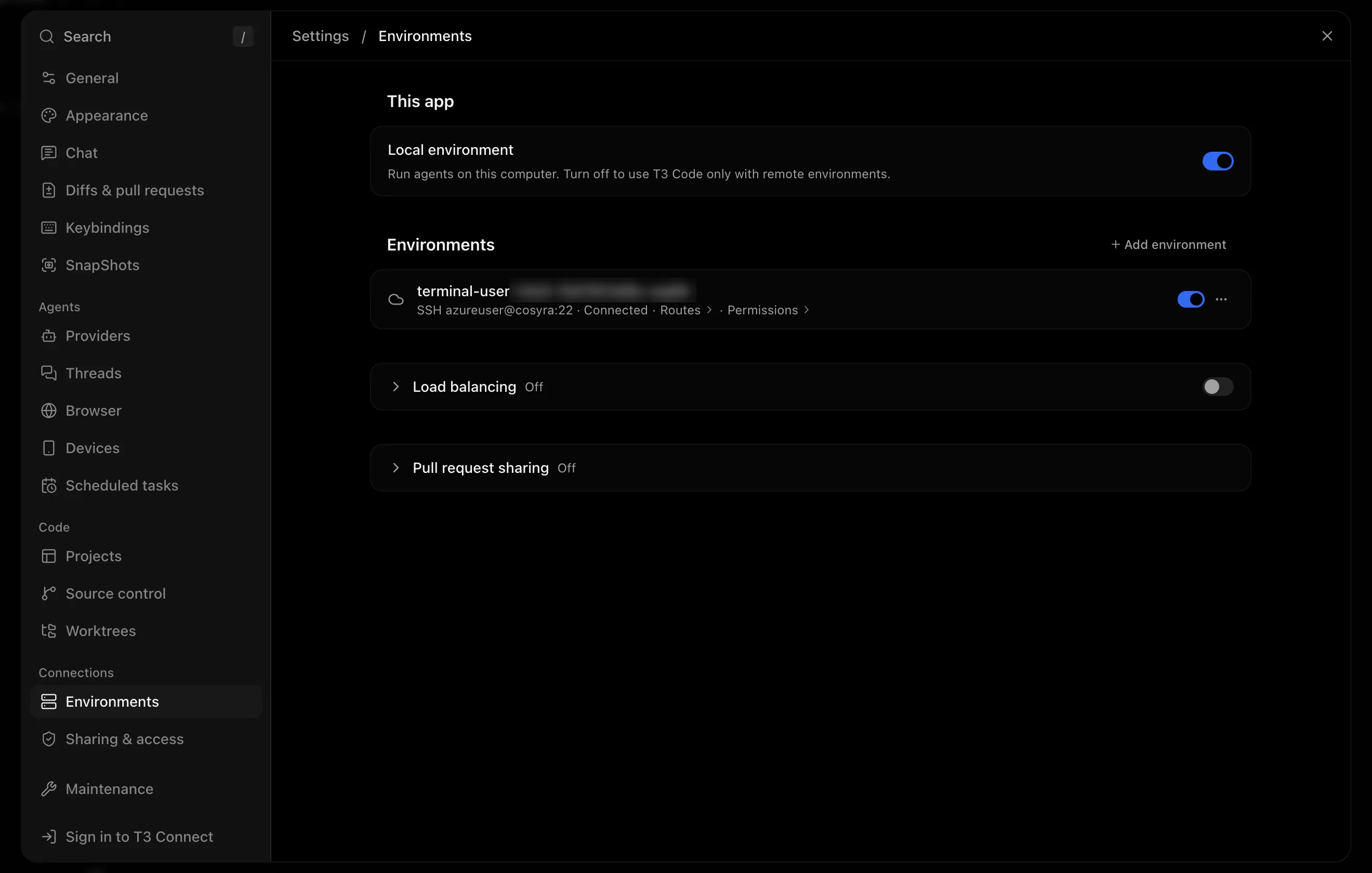
The first time, the dialog shows Adding… while T3 Code downloads
its server into the workspace and starts it. This took about 3 minutes in our
tests. Then the environment appears as
Connected, named after the workspace's machine (terminal-user-…).
Step 6
Add a project from the workspace
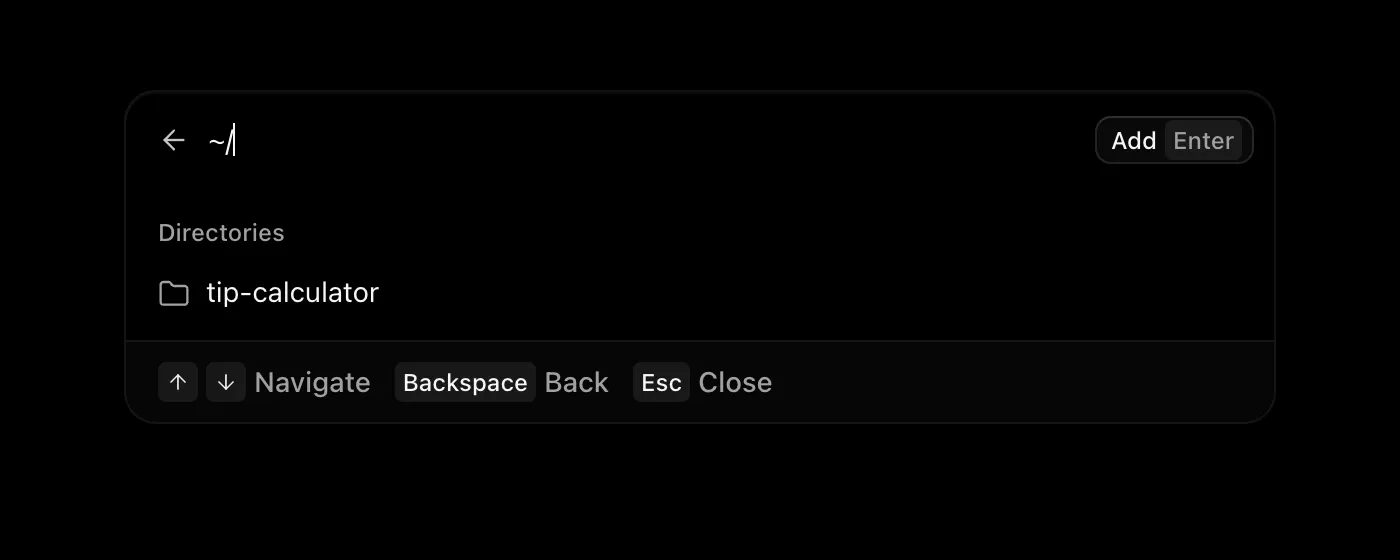
Click Add project and pick the workspace environment (terminal-user-…), not This device. Choose
Local folder: the folder picker now browses the
workspace's home directory. Select a folder and press Enter.
Step 7
Start a thread
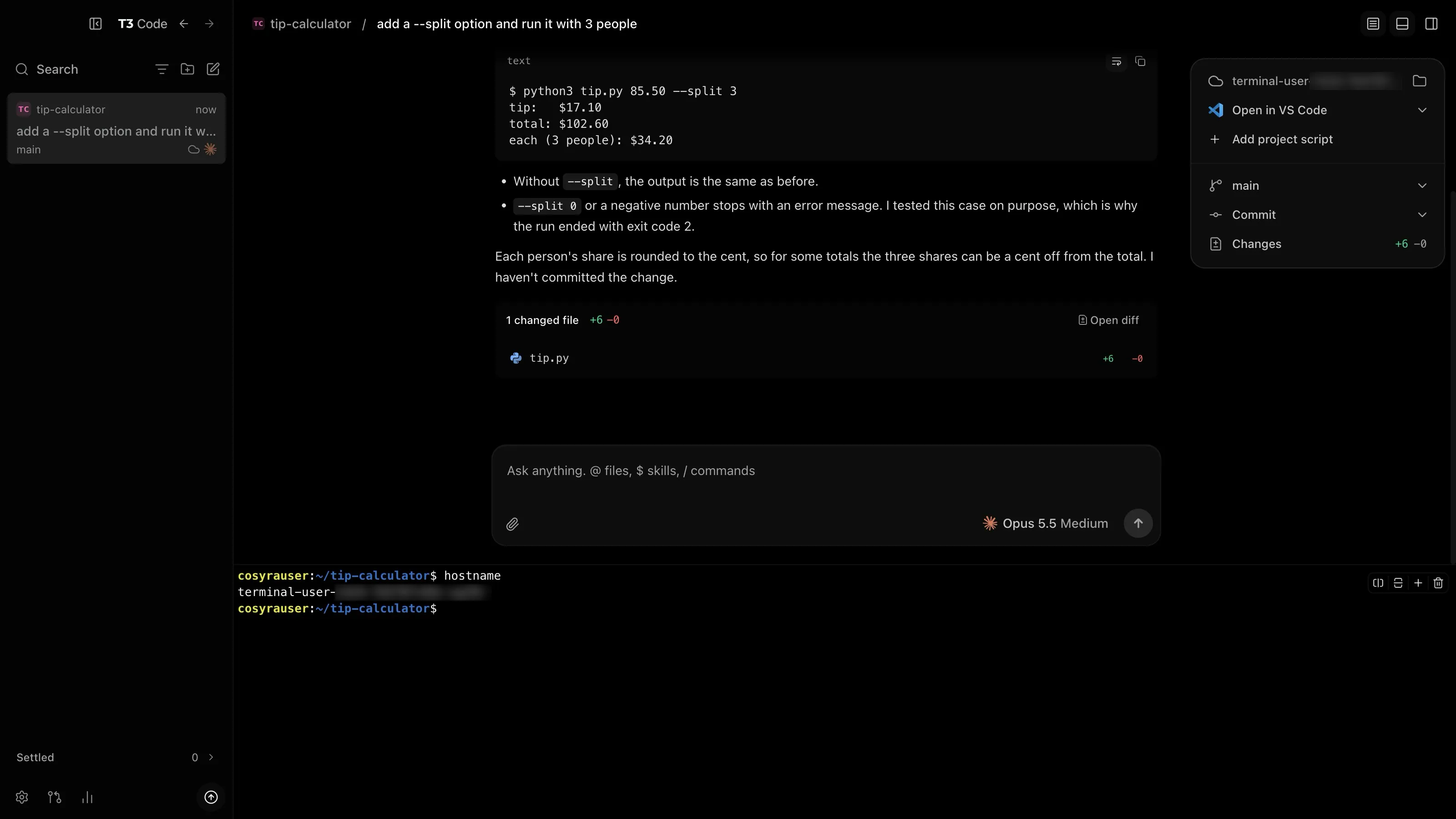
Start a thread in the project. The agent runs in the workspace, and T3
Code's terminal panel opens a shell there: hostname prints the
workspace's machine name.
The same workspace is on your phone. Your repos and signed-in agents are in the Cosyra app too, ready in a terminal when you are away from the laptop.
What to expect
| You do this | What happens |
|---|---|
| Add the environment the first time | About 3 minutes on Adding…, then Connected. |
| Open T3 Code while the workspace is asleep | T3 Code wakes it and reconnects. Under a minute in our tests. |
| Leave T3 Code open | The workspace stays awake and uses compute hours. |
| Quit T3 Code | The workspace goes to sleep on its normal idle timer. Your threads stay in the workspace. |
Troubleshooting
-
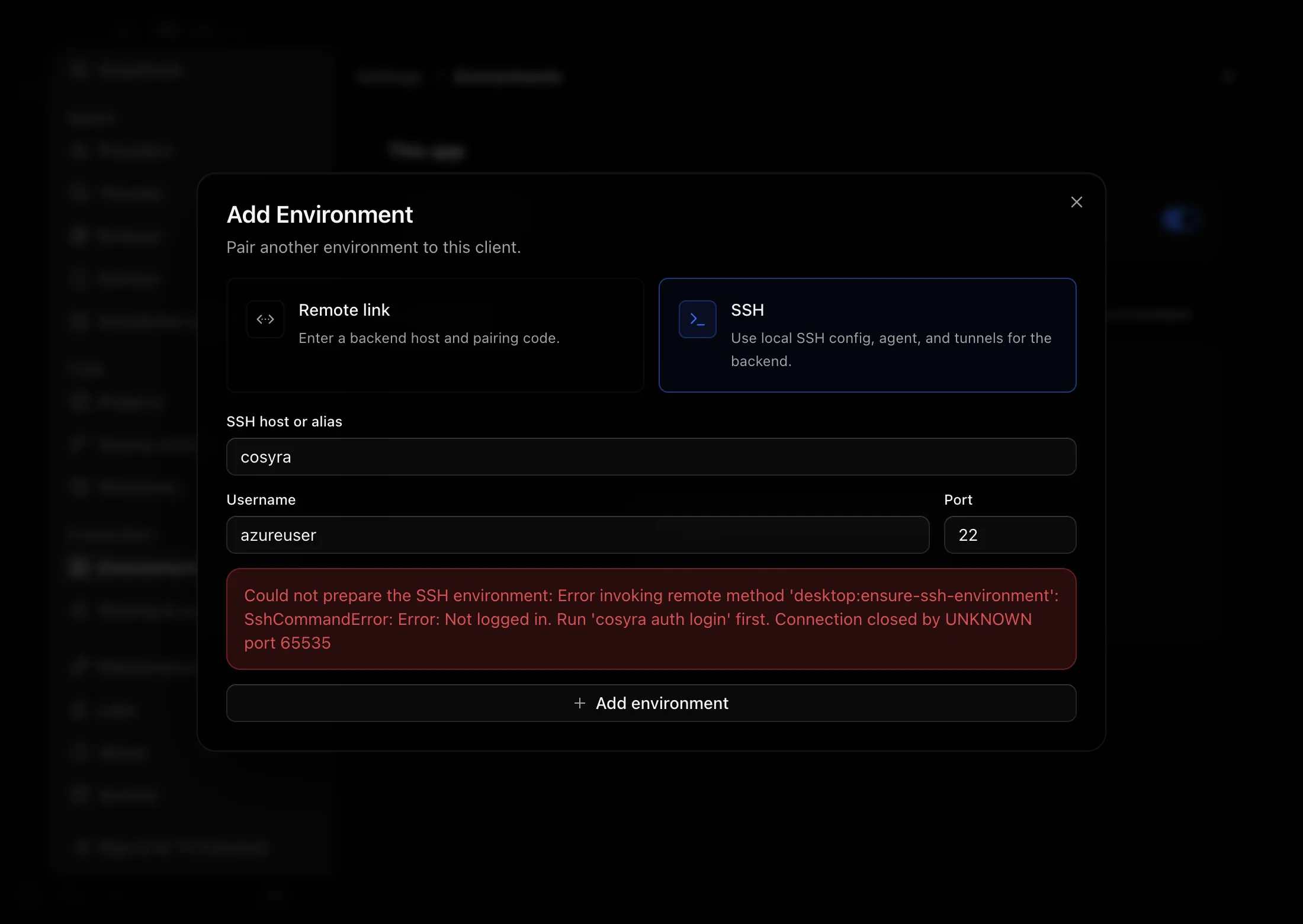
Not logged in. Run 'cosyra auth login' first.The Cosyra CLI on this computer is signed out. Runcosyra auth login, then click Add environment again. -
Connection timed out during banner exchange. T3 Code waits 10 seconds for SSH, and a workspace that is starting can take longer. Runssh cosyra 'echo connected'to wake it, then click Add environment again. -
HTTP 403: no_entitlement. The account has no active plan. Plans start at $20 a month. -
cosyrais not in the host list. Runcosyra ssh-config, then open Add environment again.
FAQ
Do I need a T3 Code plugin?
No. T3 Code's desktop app has SSH environments built in. It runs your computer's ssh, which reads the cosyra host that cosyra ssh-config writes. That host connects through the Cosyra CLI, so there are no SSH keys to upload and no port to open.
Which agents can T3 Code use in the workspace?
The ones installed and signed in there. Claude Code and Codex come pre-installed in every Cosyra workspace. T3 Code shows an agent as ready once it is signed in, so sign in once from a terminal in the workspace, for example by running claude in T3 Code's terminal panel.
Does an open T3 Code keep my workspace awake?
Yes. T3 Code keeps its SSH connection open, so the workspace stays awake and uses compute hours. If you put the workspace to sleep while T3 Code is open, T3 Code wakes it again in about 15 seconds. Quit T3 Code when you are done and the workspace goes to sleep on its normal idle timer.
What happens to my threads when I quit T3 Code?
They stay in the workspace, in ~/.t3. When you open T3 Code again it wakes the workspace and reconnects. In our tests that took under a minute, and every thread was still there.
Can I use the T3 Code phone app?
Not with this setup. T3 Code's mobile app has no SSH environments, so it cannot reach the workspace this way. On your phone, the Cosyra app opens terminals in the same workspace.
How much space does T3 Code use in the workspace?
About 360 MB in ~/.t3 after the first install, counted against your workspace storage.
Recap
T3 Code connects to your Cosyra workspace with its built-in SSH
environment. Install the CLI, choose SSH setup, wake the
workspace with ssh cosyra, then add cosyra
under Settings > Environments > Add environment > SSH. Your agents and terminals run in the cloud.