You can run Gemini CLI on a Chromebook today, two ways. Locally: turn on the
Linux development environment (Crostini), upgrade Node.js to 20+, and run
npm install -g @google/gemini-cli in the Debian container. Or skip
the local setup and open cosyra.com in Chrome, which gives you a
cloud Ubuntu container with Claude Code, Codex CLI, OpenCode, and Antigravity
CLI pre-installed. Gemini CLI is not on that image, but Node 20+ and npm are,
so the same npm command installs it there with no Node upgrade. One catch to know
before you start: Gemini CLI's free personal-account tier ended on 2026-06-18,
so the open-source binary now needs a paid Gemini API key either way. Plans start
at $20/month.
This is the Chromebook-specific companion to our Gemini CLI on your phone and Gemini CLI on Android walkthroughs. A Chromebook sits in an awkward middle: it is a real laptop with a real keyboard, but the local Linux story depends entirely on whether Crostini is available on your device and whether an admin has switched it off. We cover both branches below, with the honest trade-offs. If you would rather compare every agent that runs on the device, see our pillar on coding on a Chromebook; for the wider landscape of mobile agents see AI coding agents on mobile.
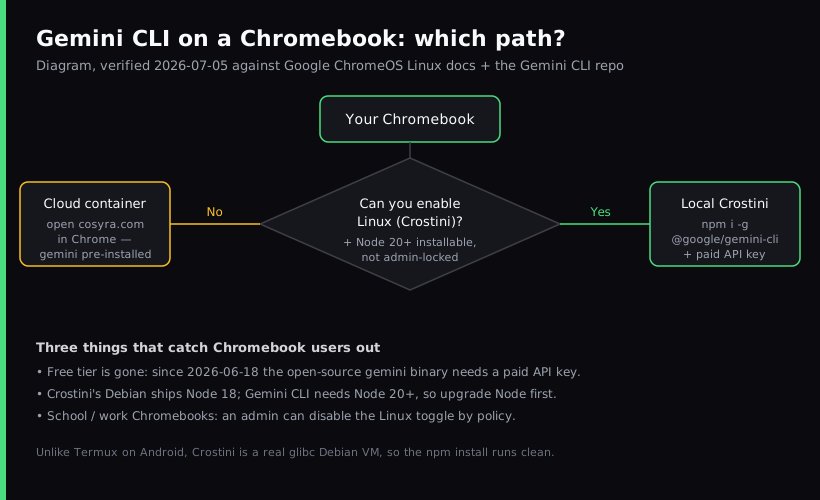
What are the two ways to run Gemini CLI on a Chromebook?
There are two real paths as of 2026-07-05. The first is local: ChromeOS ships an official Linux container called Crostini, and Gemini CLI installs inside it the same way it would on any Debian box, once you have a recent Node. The second is cloud: you open a browser-based terminal and the agent runs on a server, with your Chromebook acting purely as the screen and keyboard. Which one is right depends on three things: whether Crostini is even available to you, whether you can get Node 20+ onto the device, and whether you want the same session on your phone later.
We hold an opinion that a lot of "you need a real laptop to code" people will not like: a $250 Chromebook is a fine client for agent-driven coding, because the expensive part, the model, runs at Google, not on the device. The Chromebook renders a terminal and applies diffs. We have run a full Gemini CLI session from a loaner Chromebook on a library reading-room desk, letting the agent grind through a refactor in a tab while the fan stayed silent. The hardware almost does not matter once you accept that the compute is not local.
First, the free-tier change nobody mentions
Most "Gemini CLI on X" tutorials still tell you to sign in with your Google account and code for free. That advice is stale. As of 2026-06-18, Google stopped serving requests on the free personal-account path (and for AI Pro and Ultra), with no grace period. The free login endpoint now returns HTTP 410 Gone.
What did not change: Gemini CLI is Apache-2.0 open source, so the
gemini binary keeps running if you supply a
paid Gemini API key from
Google AI Studio
or Vertex AI. You lose the free first-party endpoint, not the toolchain. Google's
named replacement for the retired free path is Antigravity CLI (invoked as agy), a Go rewrite with no published license. For this guide we stay on Gemini
CLI itself, because that is what people search for. Just know the key is now
mandatory, whichever path you pick.
Path 1: Install Gemini CLI locally with Crostini
This is the path if your Chromebook supports Crostini, you can install a
recent Node, and the device is not locked down by a school or work admin.
You get a real Debian container with full apt, a home
directory, and root inside the VM. It is the most "normal laptop"
experience.
Step 1: Turn on the Linux development environment
Open Settings → About ChromeOS → Developers and click Set up next to "Linux development environment." Give it at least 10 GB of disk if you have the storage to spare. ChromeOS downloads a Debian VM; Google's docs say setup can take 10 minutes or more. Two limits worth knowing up front: the container has no GPU acceleration and no camera access, so it is a development shell, not a place to run accelerated workloads.
Step 2: Upgrade Node.js to version 20 or later
This is the Chromebook-specific snag. Crostini currently ships Debian 12
(Bookworm), whose apt Node is 18.x, but Gemini CLI requires Node.js
20 or later. Installing the CLI on Node 18 fails or warns immediately. The clean
fix is the
NodeSource
repository, which packages current Node for Debian:
$ node --version
v18.19.0
$ curl -fsSL https://deb.nodesource.com/setup_20.x | sudo -E bash -
$ sudo apt install -y nodejs
$ node --version
v20.11.1
If you would rather not touch the system Node, nvm installs versions
in your home directory and lets you switch between them. Either way, you want
node --version to report 20 or higher before the next step.
Step 3: Install Gemini CLI in the Debian container
With Node 20+ in place, the install is a single npm command. Because the
Crostini container is Debian, which uses glibc, the native dependencies
build directly. This is the key difference from
Android's Termux, where the
same package fails: Gemini CLI pulls in native modules like
tree-sitter-bash that expect an NDK toolchain Termux does not fully
provide, and one Termux detection bug was closed by Google as "not planned." On
a Chromebook, none of that applies.
$ npm install -g @google/gemini-cli
added 312 packages in 24s
$ gemini --version
0.11.0
Step 4: Add your API key and run gemini
Get a paid key from Google AI Studio, persist it, and start a session in your repo. There is no free sign-in path anymore, so the key is not optional:
$ echo 'export GEMINI_API_KEY="your-paid-key"' >> ~/.bashrc
$ source ~/.bashrc
$ git clone https://github.com/your-org/app.git
$ cd app && gemini
> Find the flaky test and propose a fix.
- Works when: Crostini is available, you can install Node 20+, and you want a local environment you fully control.
- Breaks when: an admin disabled Linux, your device is short on RAM or storage for the VM, or you want the same session waiting on your phone later, since a local container cannot follow you off the device.
- Cost: free to install (you pay Google for API usage via the paid key).
Path 2: Run Gemini CLI in Chrome with Cosyra
This is what we build, and it is the path when the local route is blocked or
not worth the disk. A Chromebook is, above everything, an excellent browser.
We lean into that: open cosyra.com in Chrome, sign in, and you get
a persistent Ubuntu 24.04 container on Azure with Claude Code, Codex CLI, OpenCode,
and Antigravity CLI already installed. No VM on the device, no Node upgrade, no
apt, no admin toggle to fight. Gemini CLI is not on the image,
so you install it with one command:
npm install -g @google/gemini-cli. The container runs x86_64
with Node 20+, which is exactly the environment Gemini CLI's native deps
expect, so the install runs clean. The binary lands in
~/.local/bin/gemini, which is on the PATH and survives
hibernation. Export your paid key, type gemini, and it works.
Google's replacement, Antigravity CLI, needs no install: type
agy and sign in with a Google account. The same container is reachable
from the Cosyra app on iPhone and Android, so the session you start on the Chromebook
in the library is the one waiting on your phone on the bus home.
We think this is the right default for the typical Chromebook: the device stays a thin, cheap, replaceable screen, and the environment lives somewhere durable. The honest cost of that is real: there is no offline mode. The container is in the cloud, so no internet means no terminal. A local Crostini install keeps its files on the device. (Though even local Gemini CLI needs the network to reach Google's model, so "offline coding with an AI agent" is mostly a myth either way.) You still bring your own paid key on Cosyra. We do not resell Google inference.
Try it from your Chromebook. Open cosyra.com in Chrome, or grab the app. Sign up and pick a plan, from $20/month. Google Play / App Store / Pricing details
What about a school or work managed Chromebook?
This is the single most common Chromebook coding wall, and it is worth naming plainly. On a managed device, an admin can disable the Linux development environment by policy. The Set up button is greyed out or gone, and no amount of clicking changes that. It is enforced from the Admin console, not your settings. Search the ChromeOS support forums and you will find thread after thread of students hitting exactly this.
Do not try to bypass device management. On a school or work device, that can violate policy and get you in real trouble. The two legitimate moves are: ask your admin to enable Crostini (they can do it centrally, and for a CS class they often will), or use a browser-based environment that needs no device changes at all. A cloud terminal you open in a Chrome tab is exactly that, just a website, so the Linux policy never enters into it. For the broader set of browser-based options, see our pillar on mobile cloud terminal solutions.
How do the Chromebook options compare?
The two paths line up cleanly against what matters: whether you need an admin's permission, how much local setup they cost, whether the session follows you to a phone, and what happens with no internet. Here is the side-by-side as of 2026-07-05.
| Factor | Local Crostini | Cosyra (Chrome / app) |
|---|---|---|
| Setup | Enable Linux + upgrade Node + install (~20 min) | Open cosyra.com, sign in (~1 min), then one npm command |
| Node version to manage | Yes (Debian ships 18, need 20+) | No (container is Node 20+) |
| Works on managed Chromebook | No (admin can disable Linux) | Yes (it is just a website) |
| Container OS | Debian 12 (glibc) | Ubuntu 24.04 x86_64 |
| AI CLIs pre-installed | No (you install Gemini CLI) | Yes (Claude Code, Codex CLI, OpenCode, and Antigravity CLI). Gemini CLI takes one npm command. |
| Persistent storage | On device (your eMMC) | 30 GB in the cloud |
| Same session on your phone | No | Yes (iOS + Android apps) |
| Gemini API key | Paid key required (free tier ended 2026-06-18) | Paid key required (BYOK, no markup) |
| Works offline | Files yes, model no | No |
| Cost | Free + your API usage | From $20/mo + your API usage |
Choose local Crostini if you own the Chromebook, it has the room for the VM, and you want a free environment with files on the device. Choose Cosyra if your Chromebook is managed, low-spec, or you want the same container on your phone and in a browser without any local setup. If you are weighing a remote SSH box instead, our SSH from your phone guide covers why a managed container usually beats babysitting your own server.
Frequently asked questions
Can you run Gemini CLI on a Chromebook?
Yes, two ways. Locally inside the Crostini Linux container with npm, or in a browser via a cloud terminal like Cosyra, where one npm command installs it with no Node upgrade. Gemini CLI is a Node.js binary, and Crostini gives you a real Debian environment, so the install works the same way it does on any Linux laptop.
[source: google-gemini/gemini-cli, official repository]
Does Gemini CLI still have a free tier on a Chromebook?
No. The free personal-Google-account tier that gave 60 requests per minute
and 1,000 per day stopped serving requests on 2026-06-18. Since then the
open-source gemini binary keeps working, but only with a paid API
key from Google AI Studio or Vertex AI. Google's named successor for the retired
free path is Antigravity CLI.
[source: Google Developers Blog, "Transitioning Gemini CLI to Antigravity CLI"]
How do I enable Linux (Crostini) on a Chromebook?
Settings → About ChromeOS → Developers → Set up next to "Linux development environment." ChromeOS downloads a Debian VM and setup can take 10 minutes or more. The container has no GPU acceleration or camera access, but a terminal and Node-based CLIs run fine.
[source: Google Chromebook Help, "Set up Linux on your Chromebook"]
Gemini CLI needs Node 20+ but Crostini ships Node 18. How do I upgrade?
Add the NodeSource repository, which packages current Node.js for Debian:
curl -fsSL https://deb.nodesource.com/setup_20.x | sudo -E bash -
then sudo apt install -y nodejs. That replaces the older apt
Node with version 20 or later. nvm works too if you would rather
keep multiple versions side by side.
[source: nodesource/distributions, Node.js binary distributions]
Why does Gemini CLI install on a Chromebook but fail on Termux?
Crostini is a Debian VM that uses glibc, the same C library Gemini CLI's
native dependencies expect. Android's Termux uses Bionic libc and lacks a
full NDK toolchain, so packages like tree-sitter-bash fail to build.
Google closed one Termux detection bug as "not planned." On a Chromebook that
whole class of failure never appears.
[source: google-gemini/gemini-cli issue #13784, Termux detection bug]
Can I run Gemini CLI on a school or work managed Chromebook?
Often not locally. An admin can disable the Linux development environment by policy, and the Set up button is greyed out. Ask your admin to enable it, or use a browser-based cloud terminal that needs no device changes. A cloud container runs in a Chrome tab, so the Linux policy does not apply to it.
[source: ChromeOS Community, "Linux on a school Chromebook that has blocked things"]
tl;dr
Two ways to run Gemini CLI on a Chromebook as of 2026-07-05. Local: enable
the Linux development environment (Crostini), upgrade to Node 20+, then
npm install -g @google/gemini-cli, free to install, on
device, needs an unlocked Linux toggle. Cloud: open cosyra.com in Chrome for a ready-made Ubuntu container where the same npm command installs
Gemini CLI with no Node upgrade, works on managed and low-spec Chromebooks,
and the same session follows you to your phone. Either way, the free tier ended
2026-06-18, so bring a paid Gemini API key.
Google Play / App Store / Pricing. Sign up and pick a plan, from $20/month.
Code on your Chromebook in a Chrome tab. No VM, no Node upgrade, no admin toggle. Gemini CLI installs with one npm command in a cloud container.