You can run Gemini CLI on an iPad, but not the way you'd guess. iPadOS won't
run it locally, and unlike Android there's no Termux to fall back on. The
fastest path is Cosyra on the App Store. The
same iOS app runs natively on iPad Pro, iPad Air, and iPad mini, and in the
Ubuntu container it provisions, Google's gemini CLI installs with
one npm command. Pair a Magic Keyboard, install the CLI, paste a paid Gemini API
key, type gemini, and the agent is up. Plans start at
$20/month, and eligible new users can start a 7-day free trial in the App
Store app. The only other path that works is SSH into your own always-on
machine, and the reason the obvious on-device options fail is worth
understanding before you waste an afternoon on them.
This guide is the iPad-specific companion to our Gemini CLI on your phone walkthrough. The phone version covers iPhone and Android generically, and the Gemini CLI on Android guide goes deep on the Termux-plus-NDK path that only Android supports. This one focuses on what's different about the iPad: it looks the most like a laptop, yet it's the hardest device to run a local terminal agent on, because the one on-device tool that makes Android work, Termux, does not exist here. If you want the broader picture of all four AI agents on mobile, start there. Our Claude Code on iPad guide is the sibling to this one for the same form factor, Gemini CLI on iPhone covers the same agent on the smaller one-handed screen, and Claude Code vs Gemini CLI lines the two agents up if you're still choosing.
Quick decision. Jump to the part that matches your situation:
- I want Gemini CLI running, no machine of my own. Cloud container, native iPad app, three-minute setup. Cosyra iPad setup ↓
- I already keep a Linux box or Mac awake at home. SSH from a terminal app and drive Gemini there. The two ways compared ↓
- I tried iSH or a-Shell and it broke. It's not you. Here's why the on-device shells can't run it. Why local fails on iPad ↓
- Gemini or Claude Code on the bigger screen? On iPad you can run both in one container. FAQ on agent choice ↓
Why is "Gemini CLI on iPad" different from Android?
Gemini CLI on iPad is a different problem from Android because of one missing tool: Termux. On Android, Termux gives you an on-device package manager and a real (if fiddly) Linux userland, so you can install Node and fight the agent onto the phone itself. iPadOS has no equivalent. Apple's sandbox doesn't allow a general-purpose package manager, so the two terminal apps people reach for, iSH and a-Shell, work very differently, and neither runs Gemini CLI. That's not a Cosyra opinion; it's two open GitHub issues, which we walk through below.
The second thing that changed is the price of entry. Until 2026-06-18, you could sign in to Gemini CLI with a personal Google account and get a
generous free quota with no API key. Google retired that path that day. The
no-key login now returns HTTP 410 Gone, and the official successor is
Antigravity CLI. Per
Google's own transition announcement, the open-source gemini binary keeps working, but only with a paid
key from Google AI Studio or Vertex AI. So every iPad path below assumes you'll
paste a paid GEMINI_API_KEY. The binary itself is alive and
shipping fast: the latest release was v0.49.0 on 2026-06-25, with 105,605
GitHub stars as of 2026-06-28. Google just took away the free first-party
endpoint, not the toolchain. If you would rather sign in with a Google
account, Antigravity CLI is pre-installed in Cosyra as agy.
Why won't Gemini CLI run on iSH or a-Shell?
Gemini CLI won't run on iSH or a-Shell because both lack a working modern Node.js runtime, and Gemini CLI is a Node.js binary. The failure modes are specific and documented, not vague "compatibility issues."
- iSH crashes Node with "Illegal instruction." iSH runs Alpine
Linux through an i386 user-mode emulator on ARM hardware. Modern Node.js prebuilt
binaries emit CPU instructions the emulator doesn't implement, so
node --versiondies withIllegal instruction. This is tracked in iSH issue #2335, open since January 2024. A second issue, #2604, is literally titled "Gemini cli", a user asking how to install it, with a reply that current Node/npm versions aren't supported and no resolution since. We tried it on an iPad to confirm;nodecrashes before Gemini CLI ever gets a chance to load. - a-Shell ships no Node.js and forbids fork. a-Shell bundles
native iOS-compiled utilities, which makes it fast, but it doesn't include a
Node.js runtime, and iOS sandboxing forbids
fork(2), the subprocess model agents rely on to run shell commands. There's noaptorapkto add Node either. It's a genuinely useful Unix scratchpad; it is not a host for an AI coding agent.
The honest takeaway: if you bought an iPad expecting it to be a smaller laptop for terminal work, the on-device story is worse than on a $200 Android phone, where Termux at least gives you a fighting chance. The fix isn't a cleverer install command. It's running the CLI somewhere that has a real Linux kernel. If you want the full field of iPad coding setups beyond Gemini, our coding on iPad guide lines every option up.
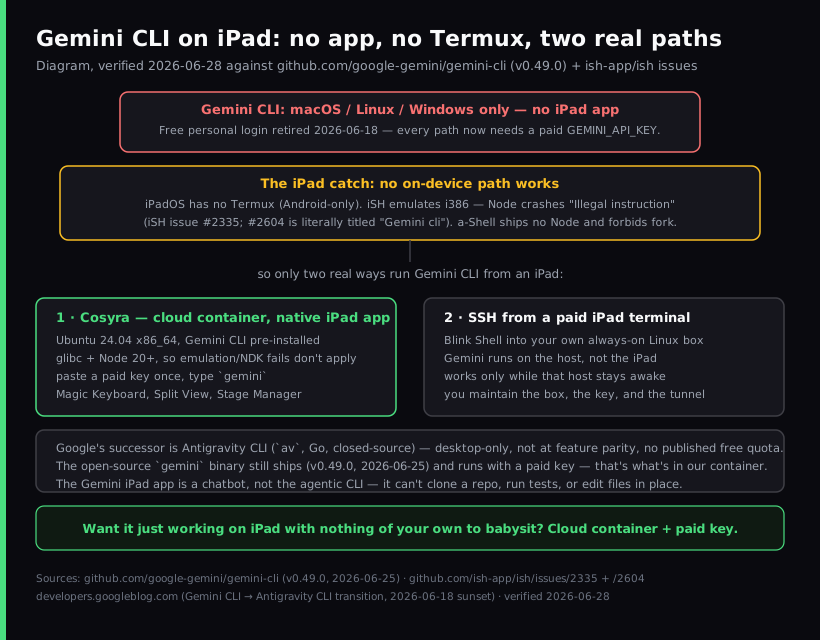
What are the two real ways to run Gemini CLI on iPad?
There are two real ways to run Gemini CLI from an iPad as of 2026-06-28: a cloud container where Gemini CLI installs with one npm command (Cosyra), or SSH from a terminal app into your own always-on machine. They're not interchangeable. One needs a machine of your own, one doesn't. We walk through both.
1. Cosyra (cloud terminal, Gemini CLI installs with one command)
This is what we build. The Cosyra iOS app is a universal binary that runs on
iPad with the full iPadOS UI, multitasking, Slide Over, Split View, Stage
Manager, external display. You get a persistent Ubuntu 24.04 x86_64
container with Claude Code, Codex CLI, OpenCode, and Antigravity CLI already
installed, 30 GB storage, and session hibernation that resumes exactly where
you left off. Gemini CLI is one command away:
npm install -g @google/gemini-cli. It installs to the
persistent home volume, so it survives hibernation. Because the container is
real glibc x86_64 with Node 20+, the emulation and NDK problems that kill
the on-device shells simply don't exist. The same container is reachable
from iPhone, Android, or web, so you can start a Gemini session on the iPad
and pick it up on a phone in a waiting room.
- Works when: you want Gemini CLI running on a real Linux host without owning one, with a one-command install on iPad.
- Breaks when: you have no internet (the container is in the cloud), or you need a local macOS toolchain like Xcode (the container is Ubuntu, not macOS).
- Cost: Core is $20/month and Pro is $30/month. Eligible new users can start a 7-day free trial in the App Store app. You bring your own paid Gemini key and Google bills you for tokens. See pricing.
2. SSH from a terminal app to your own machine
The classic remote-into-your-own-box path.
Blink Shell is a paid iOS terminal with Mosh and
tmux support refined over years. You SSH into a desktop, Mac, or VPS that has
Gemini CLI installed, run tmux so the session survives app switching,
paste your paid key on the host, and drive gemini from there. This
is a fine setup if you already keep a Linux box awake, but you're now maintaining
the box, the key, and the tunnel, and the moment the host sleeps the iPad has
nothing to talk to.
- Works when: you already have an always-on Linux box or Mac and are comfortable with SSH plus tmux.
- Breaks when: the host sleeps or the network drops. Chaining the iPad to a machine in the closet defeats the portability that made you reach for an iPad on the train in the first place.
- Cost: the terminal app (Blink is a paid subscription) plus whatever the host machine costs to run.
How do you set up Gemini CLI on iPad with Cosyra?
You set up Gemini CLI on iPad in about three minutes: install Cosyra from
the App Store, pair a Magic Keyboard, install Gemini CLI with one npm
command, paste a paid Gemini API key, and type gemini. No
emulator, no SSH tunnel, no Mac. The steps below are exactly what we run on
a fresh iPad.
Step 1: Install Cosyra on iPad
Open the App Store on your iPad and search for Cosyra. The app is a universal iOS binary, so the same listing covers iPhone, iPad Pro, iPad Air, and iPad mini. Sign in with Apple, Google, or email and the app provisions a fresh Ubuntu 24.04 x86_64 container on first launch, with Claude Code, Codex CLI, OpenCode, and Antigravity CLI pre-installed, plus Node 20+ and npm. Gemini CLI is not on the image. You install it in step 3. The first launch takes about 15 seconds in our testing.
Step 2: Pair a Magic Keyboard and arrange Split View
Attach the Magic Keyboard or any Bluetooth keyboard with a trackpad. The trackpad is the part that matters: it gives you a cursor for text selection, link tapping, and scrollback that the on-screen interface can't. Then pull a second app in as Split View. We usually keep Safari on the right with the repo or AI Studio open, and Cosyra on the left with the terminal. On M-series iPads (any M1/M2/M3/M4 iPad Pro or iPad Air from 2022 onward) you can switch to Stage Manager for floating, resizable windows and a second display over USB-C.
Step 3: Install Gemini CLI, add a paid key, and run gemini
In the Cosyra terminal, install Gemini CLI with
npm install -g @google/gemini-cli. The binary lands in
~/.local/bin on the container's home volume, so you install it once.
The Gemini CLI shortcut on the Terminals screen (app 2.8.5 and earlier) starts
Antigravity CLI (agy), so type gemini in a terminal
to run Gemini CLI itself. Since the free personal-account login retired on 2026-06-18,
Gemini CLI now needs a paid key. Generate one at
Google AI Studio (or use a Vertex
AI key), then set it:
$ # Install Gemini CLI (lands in ~/.local/bin)
$ npm install -g @google/gemini-cli
$ # Set the paid key (persists across sessions)
$ echo 'export GEMINI_API_KEY="your-key-here"' >> ~/.bashrc
$ source ~/.bashrc
$ gemini --version
0.63.0
Clone a repo and start a session:
$ git clone https://github.com/your-org/your-project.git
Cloning into 'your-project'...
$ cd your-project
$ gemini
Gemini CLI. Type a task to begin.
> Add a /health endpoint, wire it into the router, write a test, run it.
Gemini reads the repo and starts working. On iPad, the larger screen means you can read the full diff without scrolling, which is the single biggest ergonomic win over the phone. One Gemini-specific note: with Gemini 2.5 Pro selected on a paid key, you keep the 1-million-token context window, which is genuinely useful when you point the agent at a large codebase and ask it to trace something across many files.
Try Cosyra. Eligible new users can start a 7-day free trial in the App Store app. App Store / Google Play / Pricing details
Which iPad keyboard shortcuts matter for Gemini CLI?
The iPad shortcuts that matter for Gemini CLI are the iPadOS multitasking ones, not in-app ones. Cosyra is a normal terminal. Ctrl-C, Ctrl-D, and Cmd-K (clear) all work once a hardware keyboard is attached. The system-level ones worth memorizing:
- Globe key + Q: show the App Library to pull Safari in next to Cosyra.
- Globe key + Up arrow: open the multitasking switcher to set up Split View or Stage Manager groups.
- Cmd + Tab: cycle apps, the same as macOS.
- Cmd + Space: Spotlight. Type "cosyra" to jump straight to the terminal from any app.
- Press and hold the mic key on the Magic Keyboard to dictate a task. Dictation is faster than typing for the natural-language part of an agent session, and Gemini tasks are usually a sentence or two.
What does iPad Gemini CLI look like in practice?
iPad Gemini CLI in practice looks like Cosyra on the left with the terminal, Safari on the right with the repo or docs, and short typed or spoken tasks driving the agent. Two workflows we run from an iPad regularly:
Couch feature work with Split View
Evening on the couch, you want a small endpoint added before tomorrow. Open Cosyra, clone or pull the branch, drag Safari in with the repo, and hand Gemini the task:
$ git checkout -b feature/health-endpoint
$ gemini
> Add GET /health returning {status:'ok'}, register the route,
add a passing test, then run the suite.
Gemini writes the handler, wires the route, adds the test, and runs the
suite. You read the result on the big screen and commit with git commit
from the same terminal. No laptop in the loop, and nothing crashed on an emulator
first.
Large-context refactor on an external display
Plug an M-series iPad Pro into a USB-C display and enable Stage Manager. Point Gemini at a big repo and lean on the 1M-token context: ask it to trace where a config value flows across modules before you change it. Run Gemini in one Cosyra window and Claude Code in a second on the tests, with Safari showing the staging environment. Because both agents live in the same Ubuntu container, they see the same files and git history. You're not syncing anything between them. The iPad is the workstation; the container is the source of truth.
How do the iPad Gemini CLI options compare?
The options compare cleanly when you line them up against what actually matters: does Gemini CLI run at all, does it need a machine of your own, and what happens when that machine sleeps. The table covers the two working paths plus the two on-device shells people try first and why they fail, as of 2026-06-28.
| Feature | Cosyra (iPad app) | SSH via Blink | iSH (local) | a-Shell (local) |
|---|---|---|---|---|
| Gemini CLI actually runs | Yes (in container) | On your host | No (Node crashes) | No (no Node) |
| Native iPadOS app | Yes | Yes (Blink) | Yes | Yes |
| Real Linux kernel / glibc | Yes (Ubuntu x86_64) | Depends on host | No (i386 emulated) | No (iOS-native) |
| Gemini CLI pre-installed | No (one npm command) | You install on host | N/A | N/A |
| Requires another machine | No | Yes (always-on) | No | No |
| Other CLIs alongside | Claude, Codex, OpenCode, Antigravity | Whatever is on the host | None work | None work |
| Split View / Stage Manager | Yes | Yes (Blink) | Yes | Yes |
| Setup time | ~3 min | 15–30 min | fails | fails |
| Cost on iPad | From $20/mo | Blink sub + host | Free (but broken) | Free (but broken) |
Choose Cosyra if you want Gemini CLI genuinely running with no machine of your own and the same container across iPad, iPhone, and Android. Choose Blink plus SSH if you already keep an always-on Linux box and want full control of your own host. iSH and a-Shell are in the table only so you don't lose an evening discovering what their issue trackers already say.
Frequently asked questions
Can you actually run Gemini CLI on an iPad?
Not on iPadOS directly, and not the way you can on Android. Gemini CLI is Google's open-source Node.js agent that installs on macOS, Linux, and Windows. iPadOS has no Termux (that's Android-only), and the two on-device iOS shells can't run it. The two paths that work are a cloud Linux container the iPad connects to (in Cosyra, Gemini CLI installs with one npm command) or SSH from a terminal app into your own always-on machine.
[source: google-gemini/gemini-cli README: supported platforms]
Why won't Gemini CLI install in iSH or a-Shell on my iPad?
Because both lack a working modern Node.js runtime. iSH runs Alpine via i386 emulation and modern Node crashes with "Illegal instruction". iSH issue #2335 has tracked this since January 2024, and issue #2604 is literally titled "Gemini cli" with no resolution. a-Shell ships no Node.js and iOS forbids fork(2), which the agent's subprocess model needs.
[source: iSH issue #2604, "Gemini cli"]
Did Gemini CLI's free tier really end?
Yes. As of 2026-06-18 the free personal-account login stopped serving requests. The no-key OAuth path now returns HTTP 410 Gone, with no grace period. Google's official replacement is Antigravity CLI. The open-source gemini binary itself still works, but only with a paid API key from Google AI Studio or Vertex AI. Enterprise Code Assist licenses are unaffected.
[source: Google Developers Blog: transitioning Gemini CLI to Antigravity CLI]
Do I need a Mac or PC to run Gemini CLI on iPad?
No, if you use a cloud container. Cosyra runs the Ubuntu container on Azure and the iPad is just the screen and keyboard, so there's no machine of your own to keep awake. The SSH path does need a Mac, PC, or VPS that stays on. When that host sleeps, the iPad has nothing to talk to. We start a Gemini session on an iPad on the couch and resume the same container on an iPhone later without re-cloning or re-authing.
[related: Gemini CLI on your phone: the cross-device container]
Is the Gemini app on iPad the same as Gemini CLI?
No. The Gemini app on the App Store is a chat assistant. Gemini CLI is an agentic terminal tool that clones repos, edits files in place, runs shell commands, and executes tests. The app can't touch your codebase the way the CLI does. For the agent that actually changes files in a project, you need the CLI in a Linux environment, which on iPad means a cloud container or SSH.
[source: google-gemini/gemini-cli README: what the CLI does]
Should I run Gemini CLI or Claude Code on my iPad?
Run whichever matches your billing. Gemini CLI now needs a paid AI Studio or Vertex key after the 2026-06-18 sunset; Claude Code bills through its own plan or key. On iPad you don't have to choose: a Cosyra container pre-installs Claude Code, Codex CLI, OpenCode, and Antigravity CLI, and Gemini CLI installs with one npm command, so you can switch agents in the same project. Our Claude Code vs Gemini CLI comparison goes deeper.
[related: AI coding agents on mobile: the four agents compared]
tl;dr
Gemini CLI does not run on iPadOS directly, iPadOS has no Termux, and the on-device shells iSH and a-Shell can't run it (Node crashes on iSH, a-Shell has no Node). Two real ways to use it from an iPad as of 2026-06-28: Cosyra (cloud terminal, native iPadOS app, Gemini CLI one npm command away, no machine of your own) or SSH from a terminal app into your own always-on box. The free personal login ended 2026-06-18, so both paths need a paid Gemini key. Want it just working with nothing of your own to babysit? Use Cosyra.
App Store / Google Play. Sign up and pick a plan. Eligible new users can start a 7-day free trial in the App Store app.
Run Gemini CLI on your iPad in 3 minutes.
Install Cosyra, run npm install -g @google/gemini-cli, paste
a Gemini API key, type gemini.