VS Code on an iPad means opening vscode.dev in Safari. You get the actual VS Code editor: open a repo, edit files, commit. What you do not get is a terminal or a runtime. By Microsoft's own statement the browser version is "a very limited execution environment" where "the terminal and debugger are not available." So you can edit code on an iPad, but you cannot run, build, or debug it there, and a Magic Keyboard does not change that, because the limit is the browser sandbox, not the keyboard. If running code is what you came for, the honest answer is a native app plus a persistent cloud Linux box, which is what we build at Cosyra.
The iPad makes this question sharper than the phone version does. On a phone you can blame the small screen for vscode.dev feeling cramped. On an iPad, especially an iPad Pro with a Magic Keyboard, the screen is laptop-sized, the trackpad gives you a pointer and hover, and Stage Manager gives you windowing. The hardware excuse is gone. And yet the one thing that decides whether you can build software, a terminal, is still missing, for the same reason it is missing on the phone. This guide quotes Microsoft's docs and GitHub issue tracker directly so you are not taking our word for it, then shows the setup that actually gives you a terminal on an iPad. For the phone angle and the full four-surface breakdown, see our VS Code on your phone guide; for a head-to-head on the run-code question specifically, see Cosyra vs VS Code for the Web.
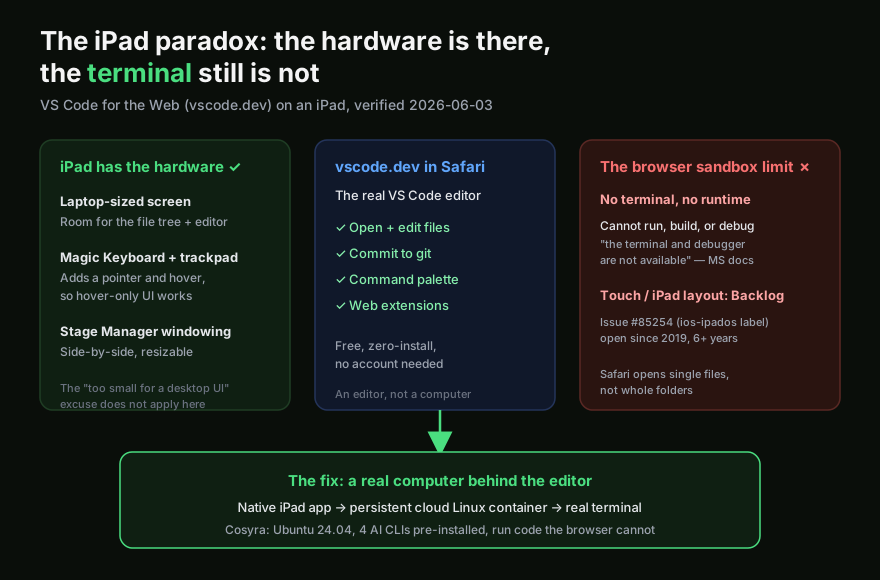
The iPad paradox: the hardware is there, the terminal is not
Apple sells the iPad Pro as a computer that can replace your laptop, and for a lot of work it can. So the natural assumption is that VS Code in a browser, which feels cramped on a phone, finally comes into its own on an iPad. The editor itself does feel better: more room for the file tree, a real pointer from the trackpad, keyboard shortcuts from a hardware keyboard. We opened a repo in vscode.dev on an iPad Pro with the Magic Keyboard and it was a genuinely pleasant place to read and edit code.
Then we reached for a terminal to run the project, and there wasn't one. That is the paradox in one sentence: the iPad fixes the input problem and the screen problem, but the thing that stops vscode.dev from being a dev environment is neither. It is the browser sandbox, and the sandbox is the same on a $1,300 iPad Pro as it is on a phone. A better keyboard cannot add a runtime that the browser does not expose.
What actually works in vscode.dev on an iPad
vscode.dev on an iPad is good at a specific, narrow job, and the iPad makes that job nicer than the phone does. Reading and editing code, and committing it, all work well. Fixing a config file, reviewing a pull request diff, editing docs, making a quick change while you are on the couch without the laptop, the iPad's screen and keyboard make this comfortable. The editor is the real Monaco editor with the command palette and keybindings you know, so there is no learning curve.
Language help is tiered, and Microsoft's docs lay it out: most languages get syntax coloring and text-based completions; TypeScript, JavaScript, and Python get richer single-file completions and syntax errors; and JSON, HTML, CSS, and Markdown are "nearly identical to the desktop." What you lose is project-wide IntelliSense for most languages, because there is no compute to run a language server. For a Markdown or JSON edit on the sofa, none of that matters. For building and running software, it is the whole game.
The load-bearing limit: no terminal, no runtime
This is the fact that decides whether vscode.dev is enough for you on an iPad. Straight from the official VS Code for the Web docs:
"the terminal and debugger are not available, which makes sense since you can't compile, run, and debug a Rust or Go application within the browser sandbox."
Microsoft is not hiding this, and it follows it with the recommended fix: "if you need access to a runtime to run, build, or debug your code, you want to use platform features such as a terminal … we recommend moving your work to the desktop application, GitHub Codespaces, or using Remote - Tunnels." Every one of those moves the compute to a real machine and reaches it over the network. On an iPad the editor in Safari is, by design, just the front end, the same front end you would get on a phone, only with more screen around it.
One of those alternatives runs in the browser too, so it is worth being straight about. GitHub Codespaces opens in the same web VS Code, but because a real container sits behind it, Codespaces does give you a terminal in Safari. On an iPad Pro with a keyboard that makes it a legitimate way to run code from the browser, and its free tier of 120 core-hours a month is generous. The catch on a tablet is that it is still the non-touch web UI in a Safari tab, it has no native iPad app, and it is wired to your GitHub repos and Actions rather than being a plain Linux box you own. We walk through that trade-off in Cosyra vs GitHub Codespaces on mobile. Our own answer keeps the real terminal but drops the browser tab: a native iPad app, bring-your-own-key instead of GitHub-tied billing, and four AI CLIs already installed.
We will say the opinionated part plainly, because it is what an "vscode on iPad" search is really chasing: the iPad is good enough hardware to be a real coding machine, and the thing holding it back is not the device, it is the decision to run the editor inside a browser. The edit-and-commit workflow is fine for small fixes. But the reason people want to code on an iPad in 2026 is to run a dev server, run a test, or hand a task to an AI coding agent, and none of that happens in a browser sandbox. People who say vscode.dev is "basically a laptop on the iPad" usually mean they only ever edit, never run.
Safari on iPad cannot open a project folder
There is one more iPad-specific catch worth knowing before you build a
workflow around vscode.dev. Opening a local project folder in the browser
relies on the File System Access API, which is implemented in Chrome and
Edge but not in Safari. On an iPad, where every browser ultimately runs on
Safari's engine, vscode.dev can open single files but not a whole local
folder. The practical path is to open a GitHub or Azure Repos URL instead,
for example https://vscode.dev/github/your-org/your-repo, which
loads the repo through the service's API rather than from local disk. It
works, but it means your "local" project on the iPad is not really local; it
is a repo loaded over the network, with no terminal to act on it.
Touch and iPad support has been in the Backlog since 2019
Even for editing, the iPad experience has rough edges, and it has been a known gap for years. The request, issue #85254, "Web: Mobile Safari support," was opened on 2019-11-21 and carries the ios-ipados label specifically. As of 2026-07-07 it is still open, in the Backlog milestone. A Microsoft maintainer documents the gaps in the thread: missing wheel-event support, the Escape key not reachable, function keys absent, and hover-triggered UI that is hard to reach without a pointer. The Magic Keyboard's trackpad helps the hover problem, but the wheel-event and key gaps remain, and the in-thread conclusion is that without an external keyboard and mouse the web UI is "difficult to use."
A newer request, issue #256181, "Mobile-Friendly Layout for vscode.dev" (opened 2025-07-16), asks for larger touch targets, resizable panels, and a minimal small-screen layout. It is also open and in the Backlog with no commitment to ship. So the realistic read after six-plus years, with the ios-ipados label sitting on an unstaffed issue: a touch-optimized VS Code on the web for iPad may simply not arrive. That is worth knowing before you plan your iPad coding setup around it.
github.dev: the same gap, even lighter
If you only need to edit a GitHub repo from the iPad, github.dev is the fastest path. GitHub calls it "a lightweight editing experience that runs entirely in your browser," where you "navigate files and source code repositories" and "make and commit code changes." Press the period key on a repo and you are in. It is excellent for a quick fix from the couch. It also has no terminal and no compute, so the same ceiling applies on iPad as everywhere else: edit and commit, do not run.
How to actually run code from an iPad
The pattern that works is the one vscode.dev is missing: a native app talking to a persistent cloud Linux environment, so the editor has a computer behind it. The iPad's job is to be a good client to a real Linux box, and with the big screen and Magic Keyboard, it is a very good client. That is what we build. You get a persistent Ubuntu 24.04 container on Azure AKS with Claude Code, Codex CLI, OpenCode, and Gemini CLI already installed, 30 GB of storage, and hibernation that resumes where you left off. The same container is reachable from iPad, iPhone, and the web, so we start a task on the iPad on the couch and pick it up on a laptop later without re-cloning anything. Here is the three-minute setup.
Step 1: Install Cosyra
Install Cosyra from the App Store (it runs on iPad and iPhone) or on Android from Google Play. Sign in with Apple, Google, or email, and the app provisions a fresh Ubuntu container on first launch. This is a native app, not a desktop editor squeezed into Safari, so it gets the full iPad keyboard and pointer.
Step 2: Add your model API key
Cosyra is bring-your-own-key, so you pay Anthropic, OpenAI, or Google directly rather than through us. In the terminal:
$ # Persists across sessions and device switches
$ echo 'export ANTHROPIC_API_KEY="sk-ant-your-key-here"' >> ~/.bashrc
$ source ~/.bashrc
$ claude --version
Claude Code (latest)
Step 3: Run your code or an agent
This is the step the browser cannot do. Clone a repo and run it, or hand the work to an AI agent on the iPad's big screen:
$ git clone https://github.com/your-org/your-project.git
Cloning into 'your-project'...
$ cd your-project && npm install
added 412 packages in 6s
$ npm test
Test Suites: 18 passed, 18 total
$ claude
Type your prompt, or type "/" for commands.
> Add a health-check endpoint and a test, then run the suite.
Try it on your iPad. Sign up. 1 hour free, no credit card. Extend with a 10-hour, 7-day trial when you want more. App Store / Google Play / Pricing details
How the iPad coding options compare
Lined up against what matters when the device on your lap is an iPad, a real terminal, a native app, and whether you can actually run your code, the surfaces sort out clearly. The table covers the realistic paths as of 2026-07-07. If you are weighing more than just VS Code, our coding on iPad guide lines up every editor, agent, and cloud terminal that does or doesn't run on a tablet.
| Feature | vscode.dev (Safari) | github.dev (Safari) | Cosyra (native iPad app) |
|---|---|---|---|
| Edit and commit code | Yes | Yes | Yes |
| Open a local project folder | No (Safari, single files only) | No (GitHub repos only) | Yes (full Linux filesystem) |
| Terminal | No | No | Yes |
| Run / build / debug | No | No | Yes (real runtime) |
| Native iPad app | No (browser only) | No (browser only) | Yes |
| Touch / iPad layout | No (Backlog since 2019) | No | Yes |
| AI agents | Web extensions only | None | 4 CLIs pre-installed |
| Persistent environment | Browser local storage | None | Ubuntu 24.04, 30 GB |
| Cost | Free | Free | 1 hr free, then $29.99/mo |
Where VS Code for the Web wins on iPad
A fair comparison names what the other tool does better, so here it is with no hedging. vscode.dev and github.dev beat Cosyra on these, and if they describe your situation you should use them:
- Truly free and zero-install. No account, no trial, no card. Open vscode.dev in Safari and edit. Cosyra is a paid container ($29.99/mo Pro after the free trial).
- Instant for quick repo edits. Press the period key on a GitHub repo and you are editing in a second. For a one-line fix or a PR review from the iPad, github.dev is faster than spinning up any container.
- The real VS Code editor UI. Familiar keybindings, command palette, the Monaco editor, no learning curve for existing VS Code users, and on the iPad's bigger screen it is comfortable to read.
- Microsoft-backed, not going anywhere. vscode.dev is actively shipping monthly. No vendor-longevity worry.
Who should pick which on an iPad?
Here is the decision framework we would give a friend, with the "can I run it" question front and center.
- Pick vscode.dev or github.dev if you only need to edit and commit (config tweaks, docs, a quick PR review), you want zero cost and zero setup, and you never compile or run from the iPad. They are purpose-built for exactly that, and they are free.
- Pick Cosyra if the device on your lap is an iPad and you need a real terminal: to run a dev server, run tests, or drive an AI coding agent. That is the part the browser sandbox cannot do, no matter how good your keyboard is, and it is the part we built for.
- Try vscode.dev first if you are not sure how much you actually need to run versus edit. Open a repo, make an edit, and the moment you reach for a terminal you will know which side of this line you are on.
Frequently asked questions
Can you run code in VS Code on an iPad?
Not in VS Code for the Web. Microsoft's own docs state that "the terminal and debugger are not available, which makes sense since you can't compile, run, and debug a Rust or Go application within the browser sandbox." vscode.dev in Safari is the real editor, so you can write and commit code on an iPad, but you cannot run, build, or debug it there. A Magic Keyboard does not change that, because the limit is the browser sandbox, not the input device.
[source: VS Code for the Web, official docs]
Is there an official VS Code app for iPad?
No. Microsoft ships no native iPadOS VS Code app. The iPad story is "open vscode.dev in Safari." A touch-and-iPad layout has been requested since GitHub issue #85254 was opened on 2019-11-21, the issue carries the ios-ipados label, and it is still open in the Backlog more than six years later. Third-party apps named "VS Code mobile" exist, but they are not Microsoft products.
[source: microsoft/vscode issue #85254, "Web: Mobile Safari support"]
Does a Magic Keyboard fix VS Code for the Web on iPad?
It helps the input, not the limit. The Magic Keyboard's trackpad adds a pointer and hover, which fixes some of the hover-triggered UI that a touch screen cannot reach. But the load-bearing problem is that the browser sandbox has no terminal and no runtime, so even with a full keyboard and trackpad you still cannot run, build, or debug your code in vscode.dev. The hardware removes the touch excuse; it does not remove the sandbox.
[source: microsoft/vscode issue #85254, maintainer gap list]
Why can't Safari on iPad open a project folder in vscode.dev?
vscode.dev uses the browser File System Access API to open local folders, and that API is implemented in Chrome and Edge but not in Safari. On an iPad, where Safari is the browser, vscode.dev can open single files but not a whole local folder. The reliable path is to open a GitHub or Azure Repos URL instead, which loads the repo through the service's API rather than from local disk.
[source: VS Code for the Web, official docs, file access]
What is the difference between vscode.dev and github.dev on iPad?
github.dev is even lighter. GitHub describes it as "a lightweight editing experience that runs entirely in your browser" where you "navigate files and source code repositories" and "make and commit code changes." You open it by pressing the period key on any GitHub repo or by swapping .com for .dev in the URL. Like vscode.dev it has no terminal and no compute, so on an iPad it is a fast repo text editor with git commit, not a dev environment.
[source: "The github.dev web-based editor", GitHub docs]
If vscode.dev cannot run code, how do I run code from an iPad?
You need an editor with a computer behind it. The options Microsoft itself points to (Codespaces, Remote Tunnels, the desktop app) all move the compute somewhere real and reach it over the network. On an iPad the cleanest version is a native app talking to a persistent cloud Linux container with a real terminal, which is what we built Cosyra to be: you edit and run in the same place, on the tablet on your lap.
[source: VS Code for the Web, official docs, recommended alternatives]
tl;dr
VS Code on an iPad means vscode.dev (or github.dev) in Safari. It is the real editor and it edits and commits fine, and on the iPad's big screen with a Magic Keyboard it is comfortable, but it has no terminal and cannot run, build, or debug your code, by Microsoft's own statement, and a better keyboard does not change that. There is no official native VS Code iPad app, and a touch layout has been in the Backlog since 2019. Use vscode.dev for quick edits. To actually run code or an AI agent from an iPad, use a native app on a persistent cloud Linux box with a real terminal. That is Cosyra, with four AI CLIs pre-installed.
App Store / Google Play. Sign up. 1 hour free, no credit card. Extend with a 10-hour, 7-day trial when you want more. See pricing.
For the wider picture, our guide to AI coding agents on mobile maps every agent across phone and tablet, and the mobile coding terminal pillar covers the terminal-on-a-device decision end to end. If you are weighing the iPad specifically for AI coding, see our Claude Code on iPad walkthrough, and for other browser-only IDEs that hit the same wall on a tablet, our Firebase Studio on iPad and Coder on iPad guides. Zed has it even worse than the browser IDEs, no iPad app and no web build at all, which we cover in Zed on iPad. Kiro, AWS's agentic IDE built on Code OSS, sits in the same desktop-first bucket: its editor is desktop-only, and its browser surface (Kiro Web) is a paid autonomous-PR dashboard rather than an editor you would drive from a tablet, which we cover in Kiro on iPad.
Get a real terminal on your iPad in 3 minutes. Install Cosyra, add your API key, run your code or an agent in a persistent Ubuntu container.